
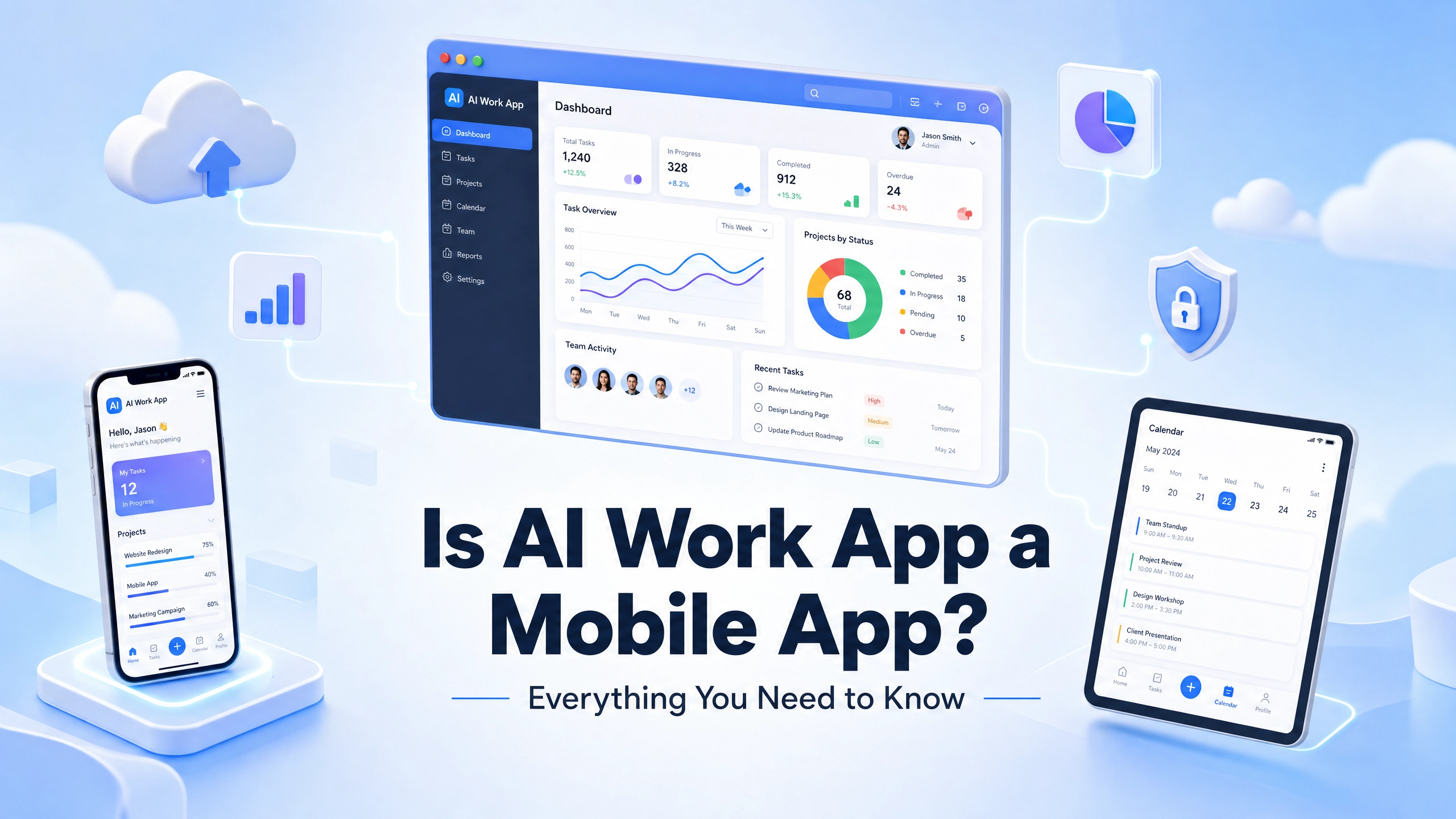
Discover how Aiwork functions as a web-based operational workspace designed for reporting, workflow coordination, investment research, accounting visibility, and business productivity across teams and devices.
Key Takeaways
- Aiwork is primarily designed as a browser-based operational workspace optimized for desktop and web workflows.
- The platform combines reporting, accounting, investment research, HR management, and workflow coordination within one centralized environment.
- Browser access is best suited for multi-dashboard management, operational reporting, deeper analysis, and large-scale workflow execution.
- Users can also access the platform across mobile and tablet devices for lightweight monitoring, approvals, and workflow visibility when away from a desktop.
- Aiwork is structured more like a web-based business operations platform than a traditional browser-based operational workspace.
Aiwork is a web-based business operating platform designed for teams managing finance, accounting, research, HR, reporting, and operations. The primary experience is delivered through the browser, where users can access AI workers, workflows, dashboards, and business systems from a centralized workspace.
The platform supports access across desktop, tablet, and mobile environments, allowing users to manage workflows, review reports, monitor updates, and coordinate operational activity from virtually anywhere. While Aiwork also supports app-based accessibility, the core experience is centered around web-based workflows and browser-driven operational management.
In this guide, we’ll explain how Aiwork functions as a web-based operational platform, which tools are included inside the workspace, how browser access compares to mobile usage, and where desktop environments still provide the best overall experience for reporting, operations, and workflow management.
What Is Aiwork?
Aiwork is a web-based business operations platform available through AIWork.app. The platform combines reporting systems, investment research tools, accounting workflows, HR management, and operational coordination inside one connected web platform.
The platform is designed for teams and professionals managing reporting, finance, research, operations, and workflow coordination across departments and devices.
Rather than focusing on a single tool, Aiwork brings together multiple business systems within one AI workspace. Users can review reports, monitor updates, coordinate workflows, and manage operational tasks without constantly switching between disconnected platforms.
Some tools focus on investment intelligence and market monitoring, while others support accounting operations, reporting systems, HR workflows, and organizational management.
| Tool | Main Purpose |
| Orion Insights | Investment research and market analysis |
| Hermes X | Market monitoring and alerts |
| Luca Accounts | Accounting and financial reporting |
| Freddie HR | Hiring and HR workflow management |
| Saras Reports | Business reporting and presentation workflows |
Inside the workspace, users can move between operational tools through a shared interface instead of opening separate systems for reporting, research, accounting, HR coordination, and workflow tracking.
For example, a team might review financial updates inside Luca Accounts, monitor reporting activity through Saras Reports, and track market intelligence in Orion Insights during the same workflow session.
Aiwork is primarily optimized for enterprise workspace and desktop environments, while also supporting mobile accessibility for lightweight monitoring, approvals, and operational visibility when needed.
What Does the Interface Look Like?
Aiwork is structured around dashboards, reporting views, workflow panels, and centralized navigation that allow users to move between operational tools without leaving the workspace.
The platform is primarily designed for browser-based workflows, giving teams access to reporting systems, operational visibility, research tools, and business coordination from one connected environment.
On desktop environments, users can work across multiple dashboards, reporting panels, operational screens, and workflow views simultaneously. The layout is optimized for deeper reporting tasks, operational management, and multi-window coordination.
On mobile devices, the interface is simplified for faster access to updates, alerts, approvals, reports, and workflow activity while away from a desktop setup.
In practical use, a team might:
- Review reporting summaries inside Saras Reports
- Check accounting activity through Luca Accounts
- Monitor market intelligence with Orion Insights and Hermes X
- Track hiring progress and HR workflows inside Freddie HR
Rather than functioning like a lightweight productivity app, Aiwork operates more like a centralized web-based operations platform built for workflow coordination, reporting visibility, and business management across teams.
Is Aiwork Actually a Mobile App?
Aiwork is designed primarily for desktop and browser-based use, with responsive access available from any modern device when needed.
However, the platform is primarily designed as a browser-based operational workspace optimized for reporting, workflow coordination, research visibility, and business management.
Users can access dashboards, reporting systems, operational tools, and workflow activity directly through the AIWork.app web platform. This allows teams to manage reporting, monitor updates, coordinate tasks, and oversee operational workflows from a centralized browser-based environment.
The platform also supports mobile accessibility for lighter workflow interactions when needed. For example, someone might quickly review updates from a phone during meetings, then continue deeper reporting or operational work from the web platform later in the day.
Rather than functioning as a mobile-first productivity app, Aiwork operates more like a centralized web application that also supports mobile access for visibility and workflow monitoring.
Cross-Device Accessibility
Aiwork is built around a centralized web workspace where teams can manage reporting, operational workflows, research tools, and business activity from one connected environment.
Users can access dashboards, reporting systems, operational tools, and workflow activity directly through the AIWork.app web platform. This allows teams to manage reporting, monitor updates, coordinate tasks, and oversee operational workflows from one centralized browser-based environment.
The platform also supports mobile accessibility for lighter workflow interactions when needed. For example, someone might quickly review updates from a phone during meetings, then continue deeper reporting or operational work from the web platform later in the day.
Through the Aiwork interface, users can:
- Review dashboards and reporting summaries
- Monitor operational updates and pending tasks
- Track market alerts and financial activity
- Coordinate with team members
- Check accounting or HR workflow updates
- Access operational information remotely
In practical use, mobile access is most useful for reviewing updates, responding to workflow activity, monitoring systems, and staying connected while traveling, working remotely, or moving between meetings.
More advanced reporting, multi-dashboard management, and deeper operational workflows are generally better suited for the browser-based web platform and desktop environments.
Real Workflow Examples
Investment Research
An analyst using Orion Insights might begin the day by checking market alerts from Hermes X while away from the desk, then continue deeper research, stock analysis, and market comparisons through the web platform later in the day.
Reporting and Operations
Managers using Saras Reports can quickly review operational summaries, monitor reporting activity, and access presentation-ready insights throughout the day without needing to stay tied to a single workstation.
Accounting and Finance
Teams working inside Luca Accounts can review financial summaries, monitor accounting activity, track pending tasks, and stay updated on operational workflows across environments.
HR and Team Coordination
HR teams using Freddie HR may oversee hiring pipelines, onboarding progress, staffing updates, interview activity, and approval workflows while coordinating across departments and locations.
In practical use, lighter tasks such as monitoring updates, reviewing activity, and responding to workflows can be handled from anywhere, while larger reporting systems, deeper analysis, and operational management are generally more comfortable within the web-based workspace.
How Teams Use Aiwork
Aiwork is designed to support different types of workflows across reporting, operations, research, accounting, and team coordination.
In practical use, lighter tasks such as reviewing updates, monitoring activity, responding to approvals, and checking workflow notifications can be handled quickly throughout the day from virtually anywhere.
More advanced workflows are typically managed through the connected operational environment, where users can work across larger reporting views, operational dashboards, financial systems, and multi-panel environments more comfortably.
For example, teams may review operational summaries inside Saras Reports, analyze financial activity through Luca Accounts, monitor market intelligence using Orion Insights and Hermes X, and coordinate hiring workflows inside Freddie HR during the same work session.
The platform is structured to give teams flexibility across environments while keeping reporting systems, operational tools, and workflow activity connected within one web platform.
Aiwork can also be accessed across mobile and tablet environments for reviewing updates, monitoring workflows, handling approvals, and staying connected to operational activity while away from the main workspace.
Browser-Based Workspace Access
Aiwork is primarily designed around a web application where teams can manage reporting, operational workflows, financial systems, research activity, and business coordination from one connected environment.
The platform also supports mobile accessibility for reviewing updates, monitoring activity, handling approvals, and staying connected while away from the main workspace.
In practical use, larger reporting systems, spreadsheet-heavy workflows, financial analysis, and multi-dashboard management are generally more comfortable within the web platform, while lighter tasks can be handled more flexibly across devices.
This type of workflow flexibility is common across operational SaaS platforms, where teams move between quick visibility and deeper operational execution depending on the task being handled.
Workflow Flexibility and Usability
Aiwork is designed to centralize reporting, operational workflows, research activity, approvals, and business coordination within one connected workspace.
Teams can manage workflows through the browser-based platform while still maintaining access to updates, reporting activity, and operational visibility across devices when needed.
The overall experience will vary depending on how many tools and workflows an organization manages. Smaller teams focused on reporting or operational visibility may adapt quickly, while larger organizations coordinating multiple systems may require additional onboarding and workflow setup.
In practical use, users can review updates, monitor activity, handle approvals, and stay connected to ongoing operations throughout the day without being tied to a single workstation.
This flexibility allows teams to move between environments while keeping reporting systems, workflows, and operational activity connected within one centralized platform.
Workflow Depth and Platform Fit
Aiwork is designed for operational visibility, reporting coordination, research activity, and business workflow management across teams.
In practical use, lighter tasks such as reviewing updates, monitoring activity, handling approvals, and staying connected to workflows can be managed flexibly throughout the day. More advanced reporting systems, financial analysis, spreadsheet-heavy work, and multi-dashboard coordination are generally more comfortable within the browser-based workspace.
The platform is best suited for organizations and professionals managing ongoing operational workflows rather than lightweight personal productivity tasks.
Finance teams using Luca Accounts can manage accounting workflows, financial reporting, and operational visibility from one connected environment. Analysts and investment professionals using Orion Insights and Hermes X can monitor market activity, research trends, and review investment intelligence across workflows.
HR departments using Freddie HR can coordinate hiring pipelines, onboarding activity, staffing updates, and internal workflow approvals, while teams using Saras Reports can manage reporting summaries, operational dashboards, and presentation-ready business insights.
The platform is especially useful for organizations that need centralized access to reporting systems, operational updates, workflow coordination, and connected business tools across teams and environments.
How the Aiwork Differs From Traditional Productivity Platforms
Many productivity platforms are built around a single function, such as task management, messaging, note-taking, or document collaboration.
Aiwork is structured differently. Instead of focusing on isolated productivity features, the platform brings together operational workflows, reporting systems, financial visibility, investment research, HR coordination, and business management within one connected workspace.
Teams using Luca Accounts can manage accounting operations and financial reporting, while analysts working inside Orion Insights and Hermes X can monitor market activity, research trends, and investment intelligence from the same environment. HR teams using Freddie HR can coordinate hiring workflows and staffing activity, while Saras Reports supports reporting visibility and presentation-ready operational insights.
This structure allows teams to manage reporting, approvals, workflow activity, operational updates, and business coordination without constantly moving between disconnected systems.
Rather than functioning like a lightweight productivity app, Aiwork operates more like a centralized operational workspace designed for organizations managing ongoing business workflows across multiple departments.
Is Aiwork Free?
Aiwork may offer different access models depending on the tools, workflows, and operational requirements being used within the platform.
Because the platform supports multiple business functions across reporting, accounting, research, HR coordination, and operational management, feature access and workflow capabilities may vary between teams and organizations.
Users researching the platform should review AIWork.app directly for the latest information related to setup, platform access, and available operational tools.
FAQs
Does the AI Work App work on both mobile and desktop?
What is the AI Work App mainly used for?
Is mobile access enough for full workflow management?
Who is AI Work App designed for?
Conclusion
Aiwork is designed as a centralized web-based workspace for reporting, operational workflows, investment research, accounting visibility, HR coordination, and business management across teams.
The platform allows users to manage workflows, monitor operational activity, review reports, and coordinate business systems from one connected environment while maintaining accessibility across devices when needed.
Teams using Luca Accounts can manage accounting and financial reporting workflows, while Orion Insights and Hermes X support investment research and market monitoring. Freddie HR helps coordinate hiring and staffing activity, while Saras Reports provides operational reporting and presentation visibility across organizations.
Rather than functioning as a lightweight productivity app, Aiwork operates more like an operational business platform built for organizations managing ongoing workflows, reporting systems, and cross-functional coordination from a centralized web workspace.